
In today’s digital world, your smartphone is more than just a device it’s your bank, diary, office, and social life all in one. But what happens if it falls into the wrong hands? Whether it’s a curious child, a stranger, or even a friend, unauthorized access can put your personal data at serious risk.
That’s where a time lock comes in. If you’re wondering how to make your phone safe by using time lock, this guide will walk you through everything you need to know simply and clearly.
What Is a Time Lock on a Phone?
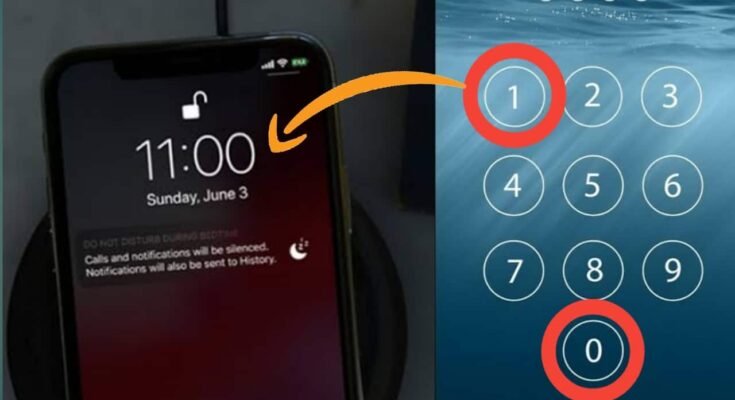
A time lock is a security feature that automatically locks your phone after a specific period of inactivity. For example, if you set a 30-second time lock, your phone will lock itself 30 seconds after you stop using it.
This small feature plays a huge role in mobile security, preventing unauthorized access and protecting sensitive information like:
-
Banking apps
-
Social media accounts
-
Personal photos and videos
-
Work emails
-
Payment apps
In short, time lock adds an extra layer of protection without requiring extra effort from you.
Why Using a Time Lock Is Important
1. Prevents Unauthorized Access
Imagine leaving your phone on a table for a few minutes. Without a time lock, anyone could scroll through your apps. A short auto-lock timer ensures your device locks quickly when unattended.
2. Protects Sensitive Data
Most people store passwords, OTPs, and financial apps on their phones. A time lock helps prevent identity theft and data breaches.
3. Enhances Child Safety
If you have children, a time lock ensures they don’t accidentally open apps, delete files, or make purchases.
4. Supports Overall Phone Security
Time lock works together with:
-
PIN codes
-
Passwords
-
Fingerprint lock
-
Face recognition
Together, these create a strong security system.
How to Set Time Lock on Android Phones
If you’re using an Android device, follow these simple steps:
Step 1: Open Settings
Go to Settings on your phone.
Step 2: Tap Security or Lock Screen
Look for Security or Lock Screen (names may vary depending on the brand).
Step 3: Select Screen Timeout
Choose Screen Timeout or Auto-Lock.
Step 4: Choose a Time Duration
Select a short duration like:
-
15 seconds
-
30 seconds
-
1 minute
For maximum security, 30 seconds is ideal.
Extra Tip:
Enable fingerprint or face unlock along with time lock for both security and convenience.
How to Set Time Lock on iPhone
If you’re using an iPhone, here’s what to do:
Step 1: Open Settings
Go to Settings.
Step 2: Tap Display & Brightness
Select Display & Brightness.
Step 3: Choose Auto-Lock
Tap Auto-Lock.
Step 4: Select Time Duration
Pick a time between 30 seconds and 1 minute for better phone safety.
Also, make sure Face ID or Touch ID is enabled for quick access after locking.
Best Time Lock Settings for Maximum Phone Safety
Choosing the right time matters. Here’s a quick guide:
| Situation | Recommended Time Lock |
|---|---|
| Office use | 30 seconds |
| Public places | 15–30 seconds |
| Home use | 1 minute |
| High-security needs | 15 seconds |
Shorter time = better protection.
Additional Tips to Make Your Phone More Secure
Using a time lock is powerful, but combining it with other security practices makes your phone nearly hacker-proof.
1. Use a Strong PIN or Password
Avoid simple codes like 1234 or 0000.
2. Enable Two-Factor Authentication (2FA)
This adds another layer of security to your apps.
3. Turn On Find My Device
This helps you track or erase your phone remotely if lost.
4. Lock Individual Apps
Use app lock features for WhatsApp, gallery, and banking apps.
5. Keep Software Updated
Updates fix security vulnerabilities and improve protection.
Common Mistakes to Avoid
Even if you use time lock, avoid these mistakes:
-
Setting auto-lock to 5 minutes or more
-
Sharing your password with others
-
Disabling lock screen security for convenience
-
Ignoring security updates
Remember, convenience should never replace security.
Real-Life Example
Imagine you’re at a café and leave your phone on the table for just one minute. Without time lock, someone could:
-
Open your banking app
-
Read private messages
-
Transfer money
But with a 30-second time lock enabled, your phone locks automatically—protecting your personal data instantly.
That’s the power of a simple setting.
Final Thoughts: Small Setting, Big Protection
If you’re serious about digital safety, learning how to make your phone safe by using time lock is one of the easiest and most effective steps you can take.
Download
It takes less than a minute to enable but protects years of personal data.
Set your auto-lock to 15–30 seconds, combine it with fingerprint or Face ID, and follow basic security habits. Your smartphone carries your digital life treat it like your wallet.